

Mobile
The same session is accessible on terminal, browser, and phone simultaneously. Start on your laptop, continue on your phone. Everything syncs in real time across devices.
You have two ways to use Omnigent on a phone:
- iOS app. A native app from the App Store that connects to any Omnigent server you point it at.
- Mobile web UI. The full web UI in any phone browser, on Android, or on iOS if you prefer not to install the app.
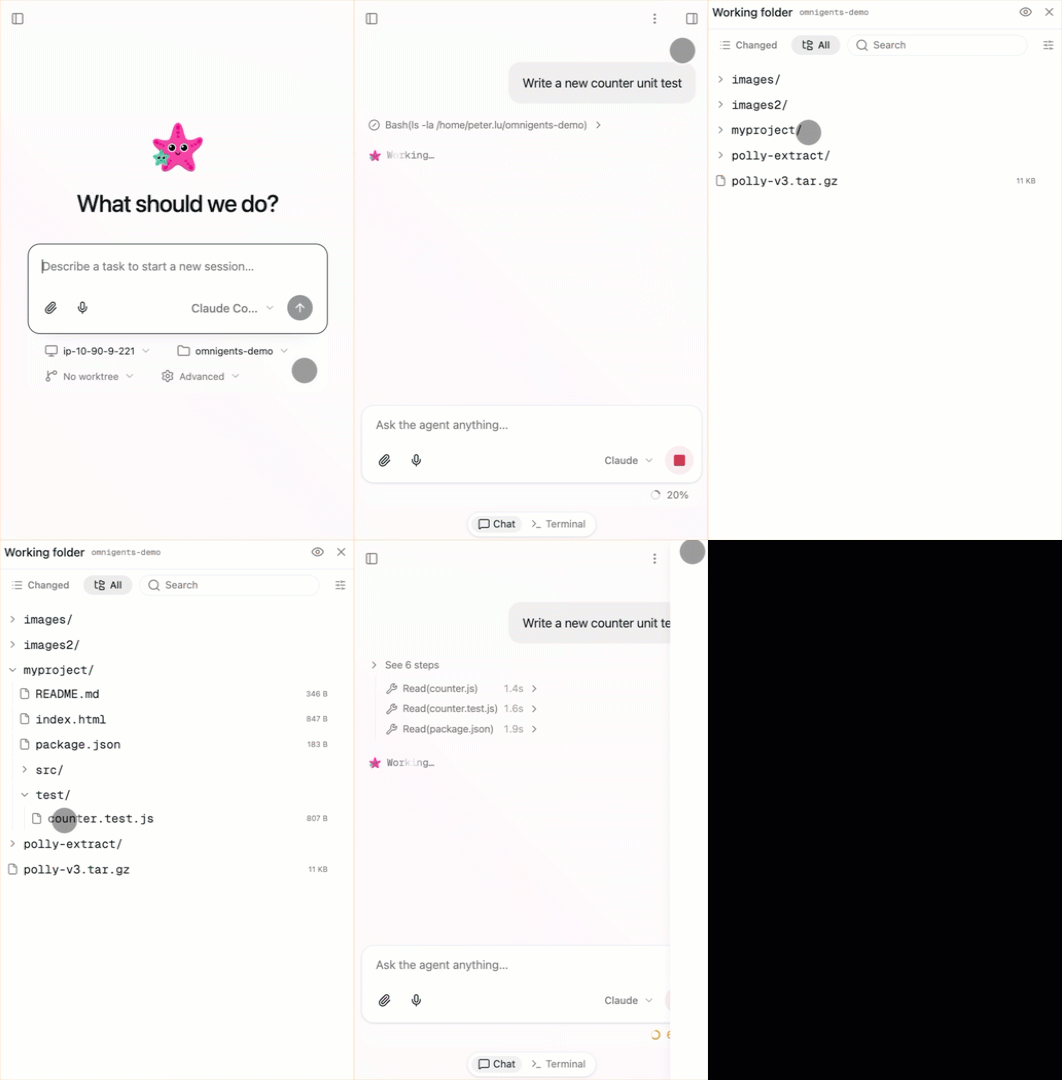
The use case
Long-running agents don't need you at your desk. Start a coding task, head to lunch, check progress from your phone. Your Omnigent hits a question. Answer it from the coffee line. Want to review what it produced? Browse the files right there.
iOS app
The Omnigent iOS app is available on the App Store. Like the desktop app, it's a thin native shell around the server-served web UI, connecting to an Omnigent server you run or deploy rather than hosting sessions itself.
Get started
- Install the app from the App Store.
- Enter your server URL. On first launch, the app asks for the URL of the Omnigent server to connect to. Enter your deployed server URL, or a Databricks workspace URL if you're using Omnigent on Databricks. The app remembers recent servers so you can switch between them.
- Start working. The app connects and shows the same UI you'd see in a browser.
Requirements
- A reachable server. The app connects to an Omnigent server; it doesn't run one on the device. The server must be reachable from your phone's network.
- HTTPS. The app requires
https://server URLs. A plainhttp://address (such as a barelocalhost) is rejected, so a local dev server needs to be reachable over HTTPS or deployed. See Deploy for options.
The app shows foreground notifications and updates the app badge while it's open. It does not do background polling, so notifications arrive when the app is in the foreground.
Mobile web UI
No install required. Open your Omnigent server's URL in any phone browser (Android or iOS) and you get the full web UI, touch-optimized: chat, monitor sub-agents, browse files, view code changes, and leave inline comments.
localhost:6767 is only reachable from the machine running the server. To reach it from your
phone:
Same network. Use your machine's local IP instead of localhost (e.g.,
http://192.168.x.x:6767). Your phone needs to be on the same Wi-Fi network.
From anywhere. Deploy the Omnigent server beyond localhost. See the deployment docs for options.
If you want a more app-like experience without the App Store, the web UI is an installable PWA: use your browser's Add to Home Screen option to launch Omnigent in its own standalone window. See Install as an app for details.
Managed configuration (org-preset servers)
On the native Android app, an organization can preconfigure the server URLs users see, so people don't have to type one. The app publishes an Android managed configuration that any EMM/MDM console (Intune, Jamf, Workspace ONE, Google Workspace, the Android Management API) can push to enrolled devices. It has a single key:
| Key | Type | Value |
|---|---|---|
serverUrls | string | Server URLs, comma- or newline-separated, most preferred first. |
For example, setting serverUrls to https://omnigent.corp.example.com offers
that server at the top of the list.
How the app treats presets:
- Offered, not forced. Preset URLs are listed ahead of the user's recent servers on the connect screen and in the server switcher. The user still taps one to connect — that holds whether the policy sets one URL or several.
- Never auto-connects. The app never connects to a preset on its own and never skips the connect screen, so a policy can't silently move someone onto a different server.
- Not a lock. A user can still type any other server URL, and the one they pick stays current.
- Always live. A preset is never written to the app's own storage, so an admin's later edit is picked up the next time the list is shown.
- Sanitized. Unparseable entries are dropped, an entry without a scheme gets
https://, same-origin duplicates collapse, and the list is capped at 8.
The iOS app has no equivalent yet; when it lands it will reuse the same
serverUrls key via Managed App Configuration.
What works on mobile
The full Web UI, touch-optimized: chat, monitor sub-agents, browse files, view code changes, and leave inline comments.
Deep links
On the native iOS app, an omnigent:// link opens a specific session on a
specific server directly in the app:
omnigent://<hostname>/c/<session_id>
The link names a server by host (with a port if it isn't the default) and a
conversation by its /c/<session_id> route. It carries no http/https; the
scheme is inferred the same way as the setup page: http for loopback hosts
(localhost, 127.0.0.1, ::1) and https for any remote host, so a deep
link and a pasted URL never disagree. For a Databricks workspace, the workspace
mount (/ml/omnigents) is not part of the link; the app discovers it
automatically after connecting.
omnigent://localhost:8000/c/conv_abc               → http://localhost:8000/c/conv_abc
omnigent://my-workspace.cloud.databricks.com/c/x   → https://…/ml/omnigents/c/x
This first version accepts only conversation links (/c/<session_id>).
How a link is handled
- Already on that server. The app navigates to the conversation in place, with no reload.
- A server you've connected to before (your saved server or one in recents) that the app isn't currently on. The app switches to it and opens the conversation directly, with no prompt.
- A server you've never connected to. The app asks you to confirm before opening. Connecting to a new server grants it privileges (notifications, app badge, microphone), so a clicked link never silently connects you to an untrusted server. Only open links from a server you trust.